

How to Use Translation with AirPods: Step-by-Step Setup
You're on a platform with four minutes until the train, and the only announcement you can hear is in a language you don't speak. Or you're in a meeting where people talk over each other and your AirPods are already in. The buds feel like the translator. They aren't. The iPhone does the language work, and the earbuds only play the result.
That's the practical core of how to use translation with AirPods. If the phone is on an old system version, a language pack is missing, or the mic is in a coat pocket, the session fails even when the audio sounds clean. I would fix the phone first, then worry about fit.
Check Your Setup Before You Pair
The setup has two ends, and both have to pass before anything translates. The iPhone processes the speech and the AirPods supply the audio, so a current pair of buds on an outdated phone fails the same way an old pair on a new phone does. Check hardware and software together, and do it while you still have Wi-Fi.
Apple's newsroom note on Live Translation reported in 2025 that the feature works with AirPods Pro 3, AirPods Pro 2, and AirPods 4 with Active Noise Cancellation. On the phone side, you need an iPhone 15 Pro or later on iOS 26 or later, with current AirPods firmware. Language and regional availability can still limit the feature, so confirm that your pair of languages is covered before you travel.
Six checks make up the whole gate. Run them as a quick pass before you open the case.
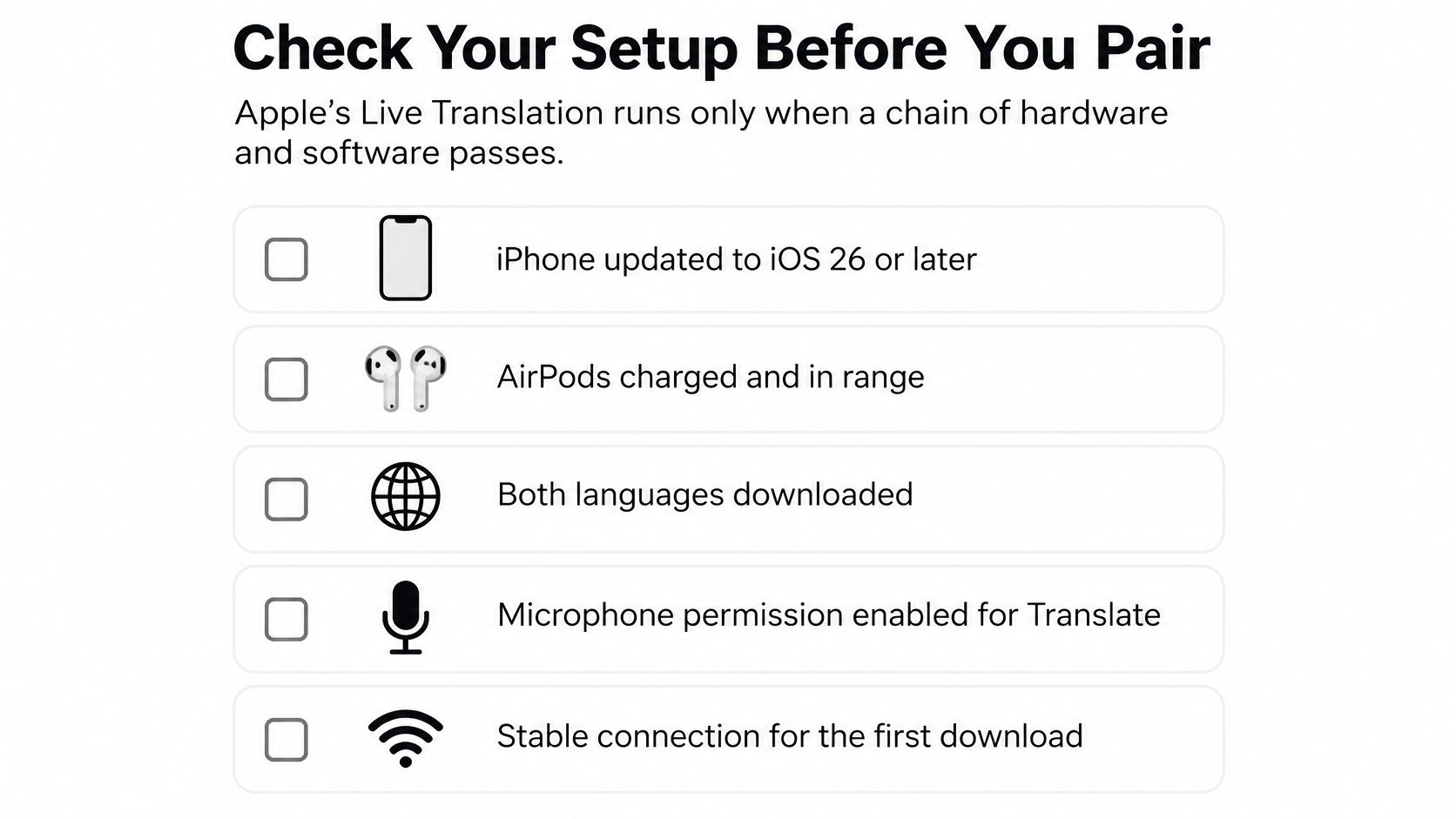
Requirements for AirPods Live Translation
| Requirement | What You Need | Check or Note |
|---|---|---|
| AirPods model | AirPods 4 with Active Noise Cancellation, AirPods Pro 2, or AirPods Pro 3 | Standard AirPods 4 without ANC are not listed |
| iPhone | iPhone 15 Pro or later with Apple Intelligence | Older iPhones cannot run the feature |
| iOS version | iOS 26 or later | Update in Software Update before pairing |
| AirPods firmware | Latest firmware installed | Keep AirPods near the iPhone while they update |
| Language packs | Both conversation languages downloaded | Download on Wi-Fi before you travel |
| Region | Available in your country | Confirm on Apple's support page before a trip |
I would run this list the night before a travel day, not on the platform. Firmware and language packs download slowly, and neither waits politely while a departure board counts down.
If a row fails, the earbuds are not dead weight. Translate AI is compatible with most AirPods and earbuds, and it runs the same two-way exchange through the phone: you speak in your language, your partner hears it in theirs, with instant voice translations in over 80 languages.
One last thing while your gear is on the table. A case that rides loose in a bag picks up scuffs fast, and if you carry it in a leather sleeve on the road, caring for full-grain leather AirPods covers keeps the wear from becoming permanent.
How to Pair AirPods and Download Both Languages
The iPhone does the translating here, so most of this setup is phone work: the update, the system switch, and two language packs. The earbuds only listen and play back. Run the steps in order, because each control stays hidden until the step before it passes.
The pairing flow is short on hotel Wi-Fi. On the platform it drags.
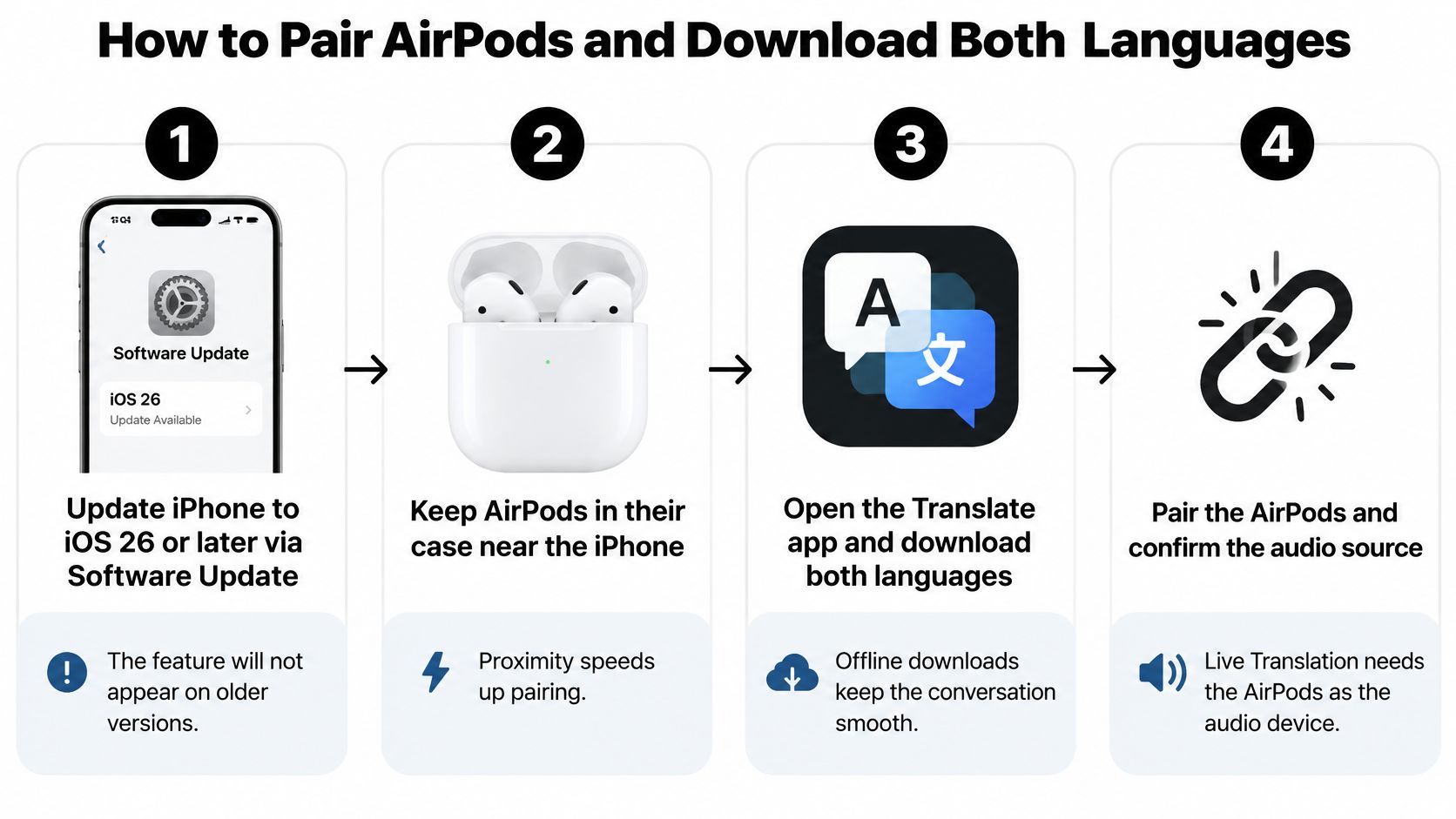
- Update the iPhone to iOS 26 or later through Software Update. The controls won't appear on an older version, so this is the step that enables the menu.
- Leave the AirPods in the case beside the phone with the screen on for a few minutes. Firmware installs over that short-range link, and an old build blocks the feature even after the phone is current.
- Turn on Apple Intelligence in Settings. The session runs on that switch, not on a hidden option inside the earbuds.
- Open the lid next to the iPhone with the screen on and tap Connect if they aren't paired. Select the buds as the audio device before you open Translate.
If you want the taps in the same order, this short clip follows the sequence above.
- In the Translate app, choose your language and your partner's language, then download both packs on Wi-Fi. Once those languages sit on the phone, conversation translation keeps running without an internet connection. That's the difference between a working session on a station with no roaming and a frozen screen. Offline support follows the specific pair you downloaded, so grab both sides before coverage drops.
- Play a short phrase in each language. If both packs answer, you're set. If one side stays silent, finish that download.
The usual slip is skipping the second pack. One direction works, and the reply doesn't.
Run a Two-Way Conversation and Get Clear Audio
Say you're at a hotel desk. The clerk speaks the local language, you need a room number and a checkout time, and you don't want to sign the wrong slip. Treat the session as turns, not as a booth interpreter talking over both of you.
Apple's AirPods guide frames this as an alternating-turn system. Set Their Language to the clerk's language and Your Language to the one you want in your ears. The clerk talks toward the iPhone. You hear the translation in the AirPods, and you read the same line on screen before you nod.
- Open Translate and set both selectors before anyone speaks. A swapped pair is the fastest way to answer in the wrong language.
- Start the live session, then talk. Words said before the mode is active are gone.
- Keep the iPhone between you, screen up, hand off the mic. A pocket or a bag kills the pickup.
- Use short sentences, one speaker at a time, and pause at the end of each turn.
- Hear the clerk in your AirPods, then check the on-screen line for the room number and the time.
- Answer in your language. The phone shows your reply for the clerk. Before you speak back, confirm the reverse direction is still set.
A cafe table is a fair model for that spacing. Both people can see the screen, and neither person covers the mic.
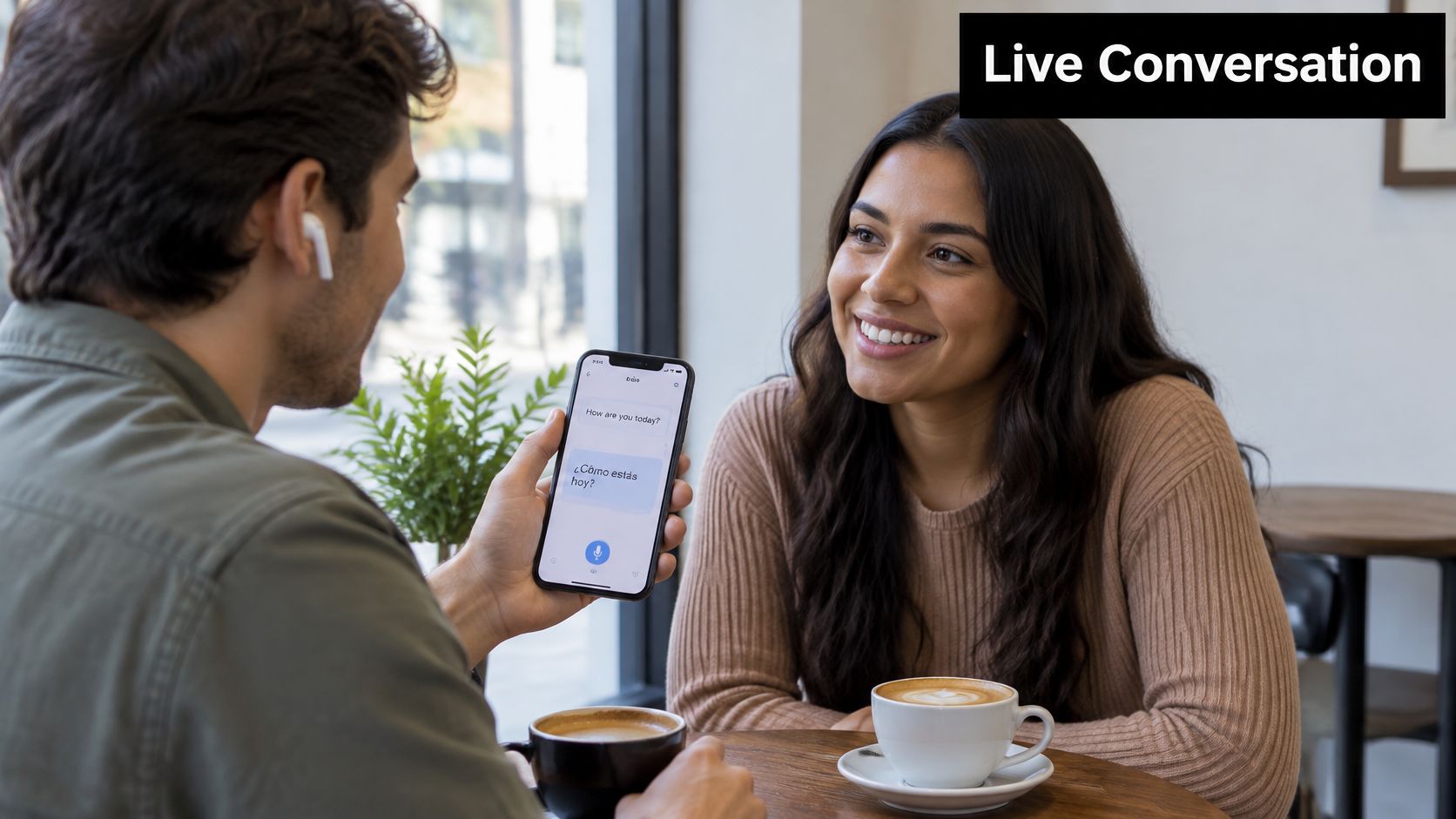
Place the iPhone Between You
If the clerk has no compatible earbuds, switch the iPhone to its speaker and raise the volume until the reply clears the lobby noise. In a loud room, step toward a quieter corner. Noise cancellation makes your listening more comfortable. It doesn't make the phone's mic better at picking out speech.
Apple's published requirements describe compatibility and setup, and they don't give a universal accuracy percentage, latency figure, or success rate. Test your language pair before you rely on it. For medical, legal, or safety-critical talks, treat the output as assistance, not as a stand-in for a professional interpreter. At the desk, don't sign until the room number and checkout time on the screen match what you think you heard.
Short lines, one voice, a pause, then a glance at the screen. That rhythm beats talking faster.
If you need the translation shown and spoken the moment you finish a sentence, with speaker mode for a hands-free reply, the same two-way pattern is covered in this guide to translating a conversation in real time. In Translate AI, the translation is shown and spoken immediately after speaking, and speaker mode is available for hands-free chats.
Common Problems and How to Fix Them
The failure you'll hit first is silence after you tap start. A missing language pack causes that more often than a broken earbud. Fixes split into two speeds. Resetting a selector or the audio route takes seconds. A download or a firmware update takes longer, and you want that done on Wi-Fi, not in a queue.
| Symptom | Likely Cause | Fix |
|---|---|---|
| No translation after tapping start | Language packs not downloaded | Download both languages on Wi-Fi, then test in airplane mode |
| Translated speech plays from the iPhone | Audio routed to the phone | Confirm AirPods are connected and selected as the audio output |
| Wrong language spoken back | Their Language and Your Language swapped | Reset both selectors before the next turn |
| Partner cannot hear the reply | Speaker volume low or phone too far away | Turn on speaker mode and raise the volume |
| Garbled or late translations | Background noise or overlapping speech | Move the iPhone closer to the speaker and pause between turns |
| Live Translation missing | Model, iOS, Apple Intelligence or region not eligible | Check the requirements table, then use Translate AI |
No translation after start. Open the language list and finish both downloads, then turn on airplane mode and repeat one sentence. If it still answers, the packs are on the phone.
Sound from the phone speaker. The route, not the translation, is wrong. Wake the buds, check the audio output, and try the sentence again.
The reply comes back in your language, or in theirs when you wanted yours. Don't keep talking. Reset both selectors, then take the next turn.
Your partner hears nothing useful. Speaker mode on, volume up, phone on the table between you. Distance and a low speaker are the usual pair.
Garbled or late lines in a noisy room. Slide the iPhone closer to the person talking and stop overlapping. Two voices at once is what breaks the turn.
The feature isn't on the phone at all. That's eligibility, not a glitch you can tap through. If the model, the system version, Apple Intelligence, or the region doesn't pass, switch to Translate AI for that conversation.
A fluent wrong sentence is harder to catch than silence. Glance at names and numbers on the screen before you act on them.
Using Translate AI With Any Earbuds
Apple's route stops when the iPhone is too old, the phone is Android, your region doesn't offer the feature, or the earbuds aren't on the compatible list. Translate AI is a separate app on the phone. It uses the buds you already own, or the phone speaker, for the same back-and-forth.
We're compatible with most AirPods and earbuds, so you don't need a special pair. You speak in your language, and your partner hears the translation in theirs.
- Select your native language and your partner's language from the app's list of languages. That first choice sets both directions.
- Tap the microphone and speak in normal sentences. You don't need a special pace if the room is reasonably quiet.
- Read the line and listen to it right away. If your partner has no earbuds, turn on speaker mode and set the volume high enough to clear traffic or a station hall.
For a city day where signs, station staff, and shop counters all switch languages, a plain phrase list still helps. Language support for foreign tourists is a useful companion when you're moving through Japan and want a human backup beside the app. If you want the earbud side in more detail, this walkthrough on a real-time language translator for earbuds matches the same tap-and-speak flow.
Get Translate AI and Its Links
- App Store: The Translate AI live translator listing is where you install the app on an iPhone.
- Website: Translate AI's site is where you can read how the two-way chats work before you install.
Choose the Setup and Run a Practice Test
If your AirPods, iPhone, iOS version, Apple Intelligence, and region all pass, use Apple's Live Translation with both packs downloaded. If any check fails, use Translate AI with any earbuds for the same two-way conversation. Translate AI gives instant voice translations in over 80 languages, which is enough for most trips and cross-border meetings.
Don't make the station or the hotel your first test. A missing pack or a swapped selector is miserable to fix in a crowd.
- Download both languages on Wi-Fi.
- Switch on airplane mode and confirm the pair still translates.
- Run a practice chat with a friend or a recording. Set both selectors and start live mode before the first word.
- Confirm your partner hears the reply on speaker at a normal volume.
- Note which pair or setting failed, then fix that row before you leave.
A few local words still earn you a warmer reply than a perfect sentence from a phone. Northern Spain Travel language tips are a good warm-up if your route passes through Basque country, and you can fold those words into the practice chat. For a wider look at travel apps, see this comparison of the best translation app for travel.
Translate AI gives you instant two-way voice translation through ordinary earbuds when Apple's Live Translation chain isn't available on your phone. It fits the same platform, cafe, and hotel moments this setup is built for, with the translation spoken back as soon as you finish a line. Visit Translate AI and run a short practice chat before your next trip.