

Speech to Text Best App: 10 Picks Compared for 2026
You're on a train trying to dictate a reply before the signal drops. Or you're after a client call, hunting for the exact number someone quoted 40 minutes in. Those two jobs need different tools, and picking the wrong one costs you cleanup time every single week.
That's why the Speech to Text Best App question has no single winner. A dictation app that nails email can fall apart on a recorded call with four speakers. A meeting platform that's brilliant in review is dead weight for a quick note.
Judge any candidate on the work in front of you. Accuracy, language support, platform fit, offline behavior, pricing, and privacy matter more than a headline percentage. Speech quality is usually measured by Word Error Rate, and NIST broadcast news evaluations reported in Communications of the ACM reached a best overall result of 13.5% in 1998, about half the 27% rate from 1995. Speed improved just as sharply, which is why latency still matters today.
This list sorts ten tools by job: dictating documents, capturing meetings, polishing media, or handling live conversation. If your main task is transcribing recorded audio across devices, start with the meeting and file tools. Travel, meeting, and language learning picks close the guide.
1. Wispr Flow
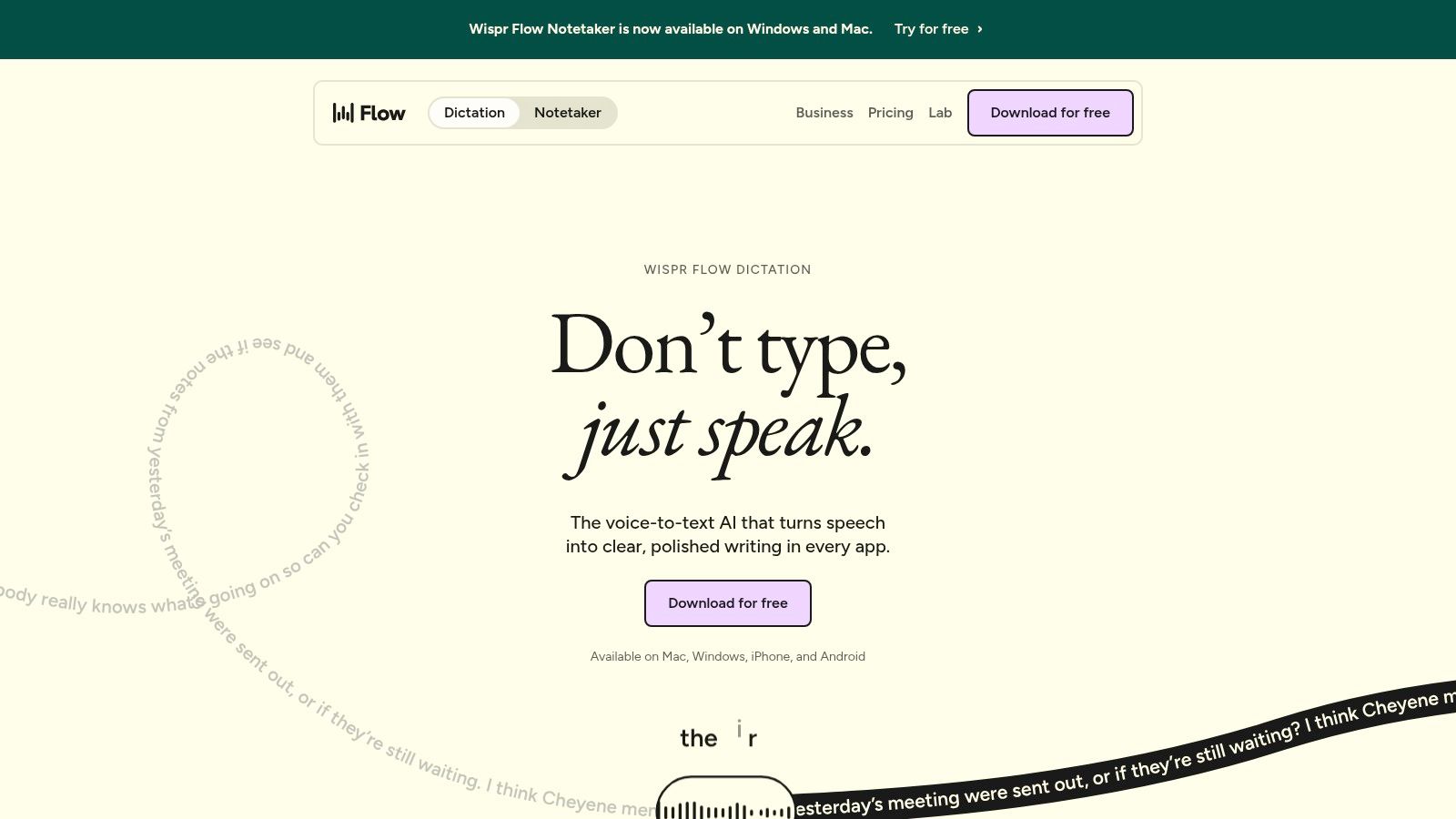
Open email, a doc, or Slack, and talk. Wispr Flow drops cleaned text into the app you're already using instead of forcing you into a separate notes tool. That's the whole pitch, and for daily writing it's a strong one.
It runs on Mac, Windows, iOS, and Android, supports more than 100 languages according to its pricing page, and removes filler words while formatting conversational speech. Personal dictionaries and snippets help with names and specialized vocabulary you repeat often.
Where It Falls Short
The free tier has usage limits, and unlimited dictation requires a paid plan. Don't buy it to manage meeting recordings. It won't give you a searchable transcript library, speaker review, or a tidy archive after a call.
- Best for: composing email, messages, and short documents by voice
- Skip it if: you need meeting capture, shared review, or file transcription
Verdict: I recommend it as the cleanest cross app dictation pick here. Test it with your real names, product terms, and accent before you pay, because polished cleanup can hide small word errors you still need to catch.
2. Otter.ai
A team call ends with names, figures, and decisions buried in the transcript. Otter.ai helps capture and review those conversations with live transcription, speaker identification, playback, highlights, comments, and search.
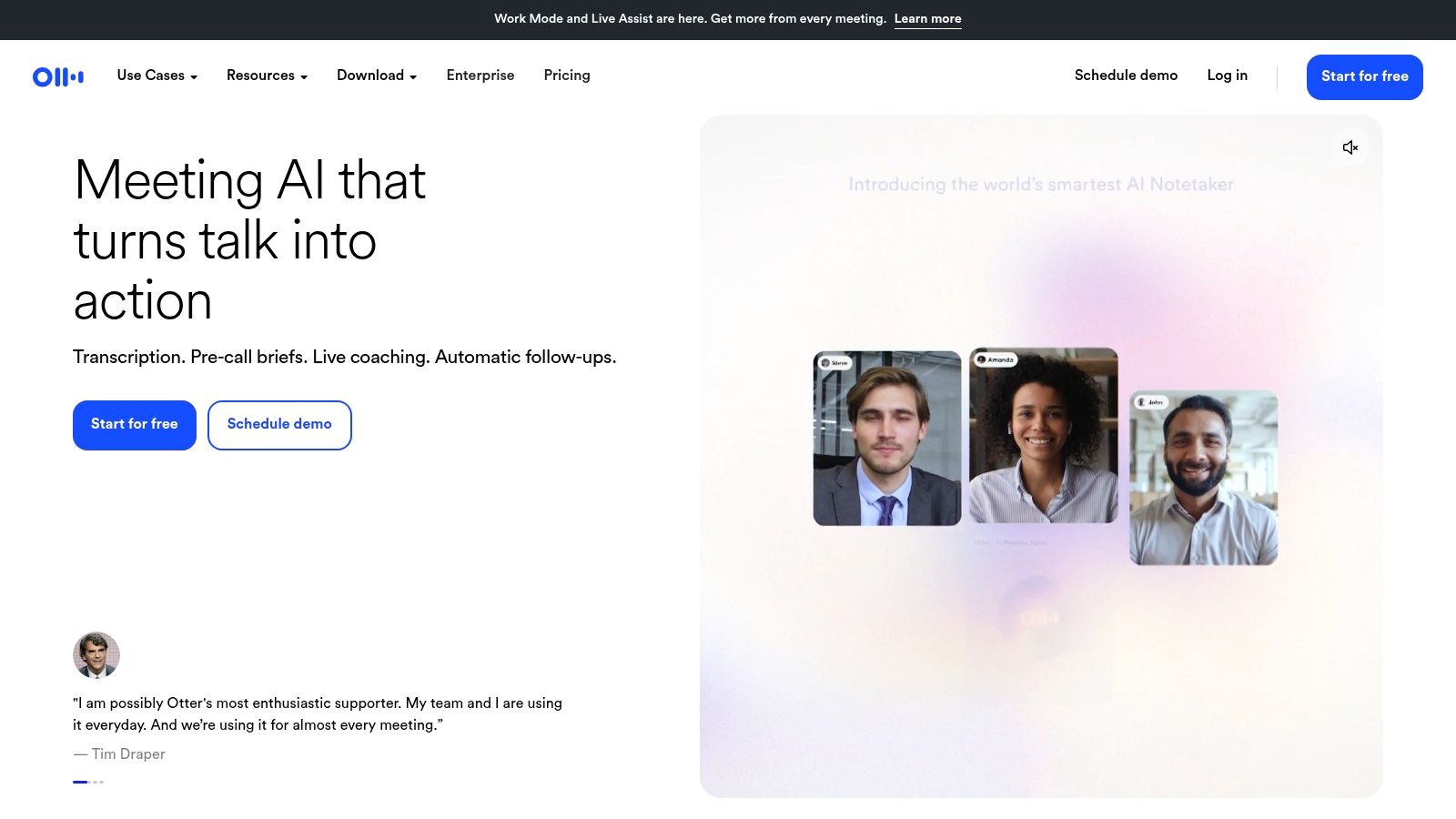
Otter works through iOS and Android apps and with Zoom, Microsoft Teams, and Google Meet. Its free Basic plan includes limited monthly transcription minutes, so it suits occasional meetings better than a heavy calendar.
Meeting audio remains harder to transcribe than close-microphone dictation, especially when speakers are distant or talk over one another. Check every name, figure, and decision against the recording before sharing notes.
Live transcription requires an internet connection, and the free plan limits imported audio and video. For recordings already saved on your device, this guide to transcribing voice memos explains a separate workflow.
Verdict: Choose Otter.ai when you need to capture meetings and review transcripts with a team. Its value is in the meeting workflow, not hands-free dictation into documents.
3. Notta
A team call that switches between languages needs more than a clean dictation tool. Notta combines real-time transcription, meeting recording, file imports, speaker identification, and searchable summaries across web, iOS, Android, desktop, and a browser extension.
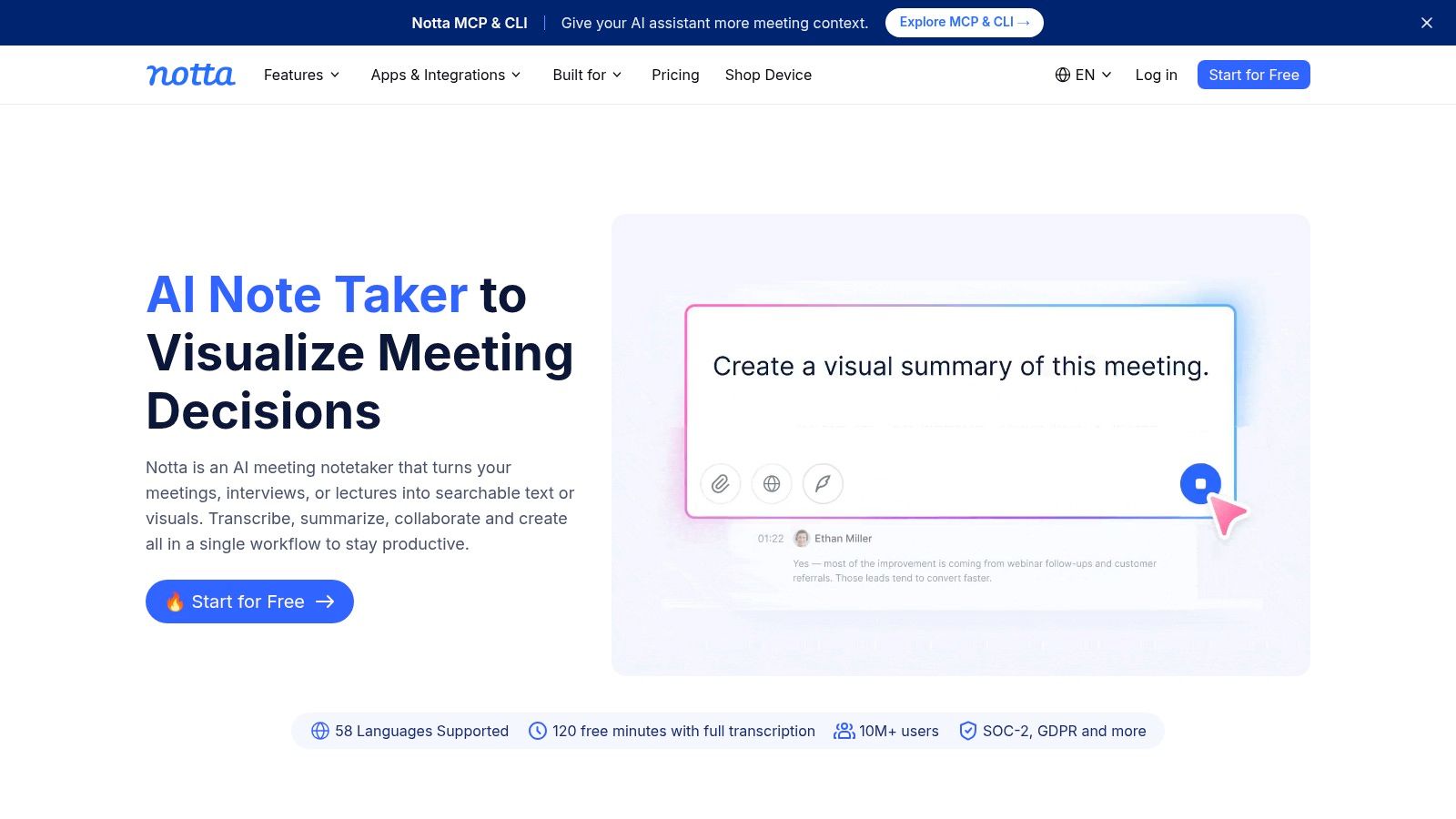
Notta supports standard transcription in dozens of languages. Bilingual transcription and translation cover a smaller set of language pairs, so confirm your exact pair before choosing it. A language listed for standard transcription does not guarantee support for every bilingual combination.
The Open ASR Leaderboard multilingual results illustrate why language-specific testing matters: reported error rates differ across German, French, Italian, Spanish, and Portuguese. Your language and recording conditions also affect the transcript, particularly when speakers overlap or have unfamiliar accents.
The Limits That Bite
- Free plan: conversations have a short per-conversation limit, so check whether it fits your meeting length.
- Bilingual features: quotas or add-ons may apply.
- Plans: features and limits vary between individual and team tiers.
Verdict: Notta suits multilingual meeting capture, but it is not a universal choice for every language pair. Check your pair and plan, then judge the transcript against a call with two speakers, overlapping speech, and the accents your team uses.
4. Rev
Sometimes an automatic draft isn't enough. Rev gives you a choice most apps don't: fast AI transcription now, or a human produced transcript when accuracy matters more than speed.
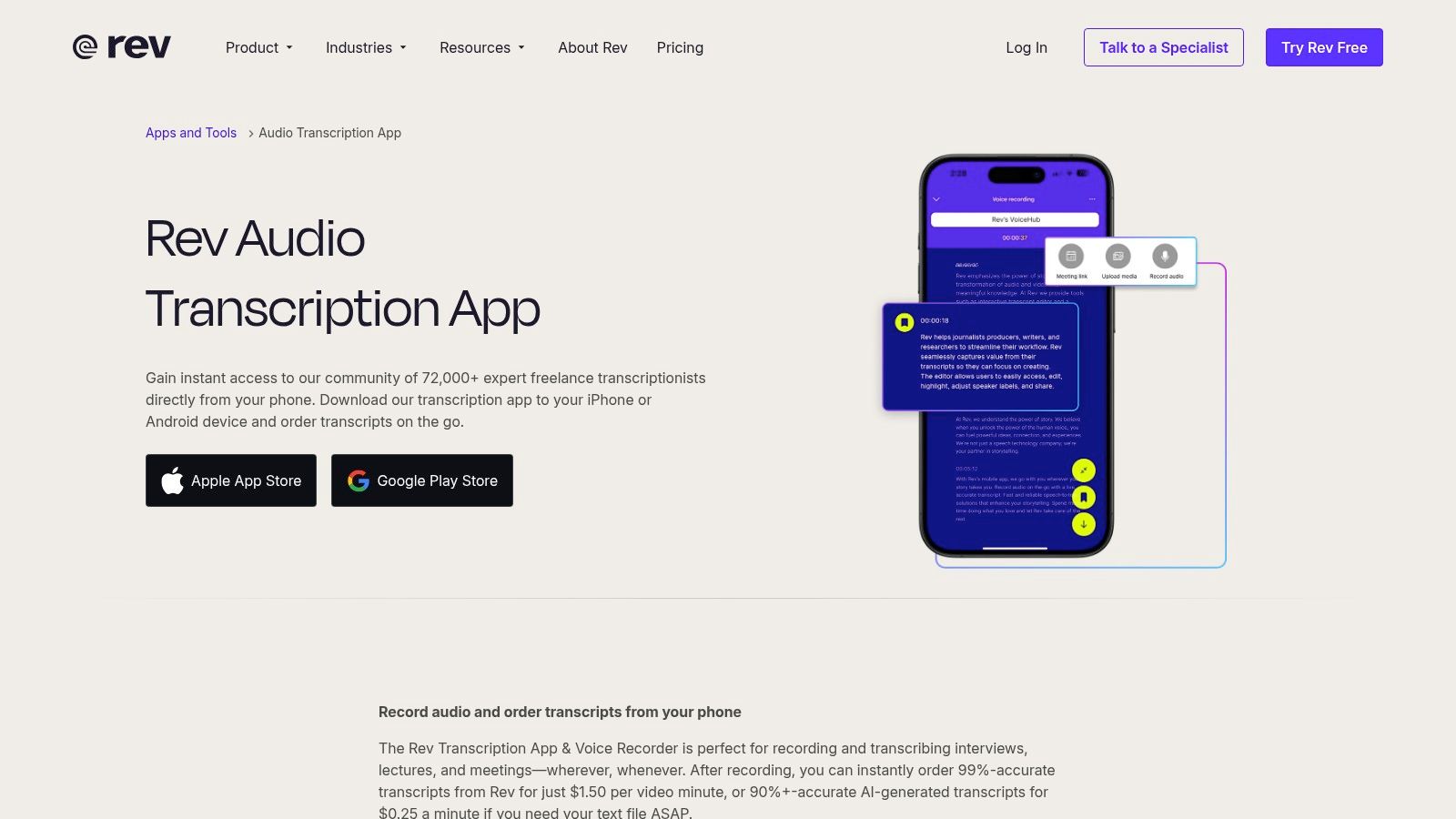
The iOS and Android app handles recording and live AI transcription, plus editing, sharing, and account syncing. AI transcription is available on a free plan with 45 monthly minutes. Human transcription is priced by the audio minute.
That split suits interviews, research, and field recordings. Record in a noisy location, get a draft, then upgrade only the recordings that will be quoted, filed, or published. The app can also record without a connection and upload when you're back online.
Watch the costs and the workflow. Human transcription gets expensive on long recordings. Live transcription and uploaded file transcription are different paths, and the app does not record phone calls.
Before any business use, treat transcripts as personal data. A legal analysis of video conference transcription recommends informing participants before the meeting about the transcription's purpose, duration, and recipients.
Verdict: choose Rev when you want an escape hatch from pure automation.
5. Dragon Anywhere
Long documents on a phone are a specific kind of pain. Dragon Anywhere is built for exactly that, with continuous dictation and no word limit, plus voice editing, formatting, and correction tools.
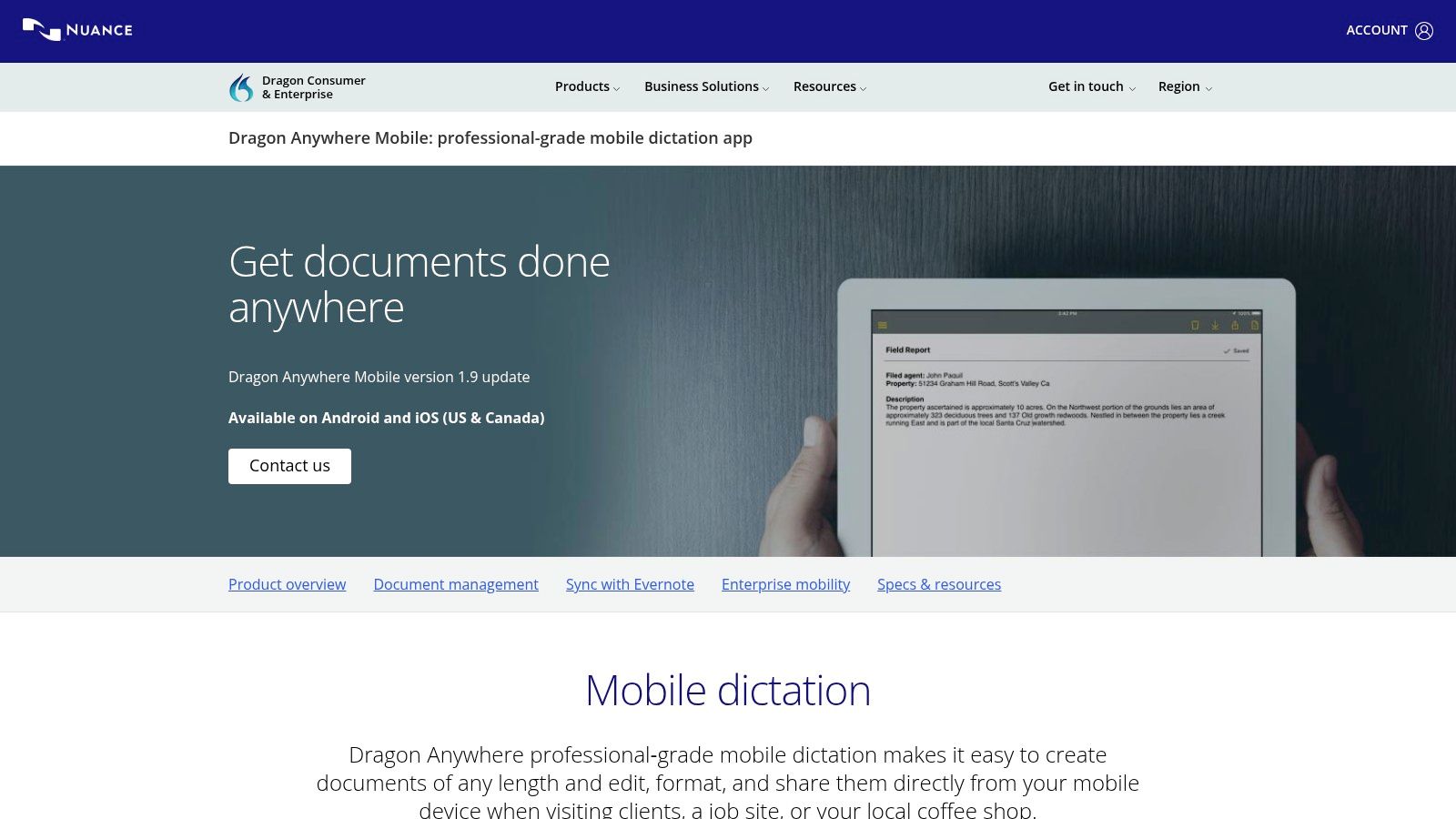
Custom words and auto text carry across devices, which helps with client names, addresses, and phrases you dictate daily. It's available on iOS and Android in the US and Canada and it's aimed at mobile professionals who write away from a desk.
Think field reports, site notes, and long follow up emails. If you work in healthcare, compare your needs against clinical dictation resources from PatientNotes before assuming a general dictation app fits a clinical workflow.
Trade Offs to Accept
A subscription is required. It's cloud based, so it isn't ideal if you need fully offline processing. And its document focus makes it a poor fit if you mainly need meeting transcripts with speaker labels and shared review.
Verdict: this is a specialist's mobile writing tool, not a general transcription hub. If you produce long documents by voice every week, that focus is the point. If you dictate twice a month, you'll overpay for power you won't use.
6. Google Docs Voice Typing
You may not need another app at all. If you already write in Google Docs, Voice Typing puts dictated text straight into the document, with no copy and paste step and no separate transcription subscription.
It works in supported versions of Chrome, Edge, and Safari. Voice commands handle some basic editing and formatting, enough for a first draft, lecture notes, or a rough memo you'll clean up at the keyboard.
That simplicity explains both the appeal and the ceiling. There's no recording library, no speaker identification, and no sensible way to organize long interviews or recurring meetings. You need a working microphone and browser access, and availability can depend on your browser and organizational settings.
- Use it for: first drafts, brainstorms, and notes inside Docs
- Don't use it for: interviews, team meetings, or transcript archives
Satisfaction is about more than raw accuracy. PwC consumer research on voice assistants found 93% of voice assistant users are satisfied overall, including 50% who are very satisfied, but only 38% were very satisfied with smartphone voice assistants. Low friction matters, and Docs wins on friction.
Verdict: start here if Docs is already open all day. Move on the moment you need recordings you can search, share, and revisit.
7. Apple Dictation
The fastest tool is the one already on your phone. Apple Dictation works in text entry fields across supported Apple devices, alongside keyboard editing, with no separate subscription for the built in feature.
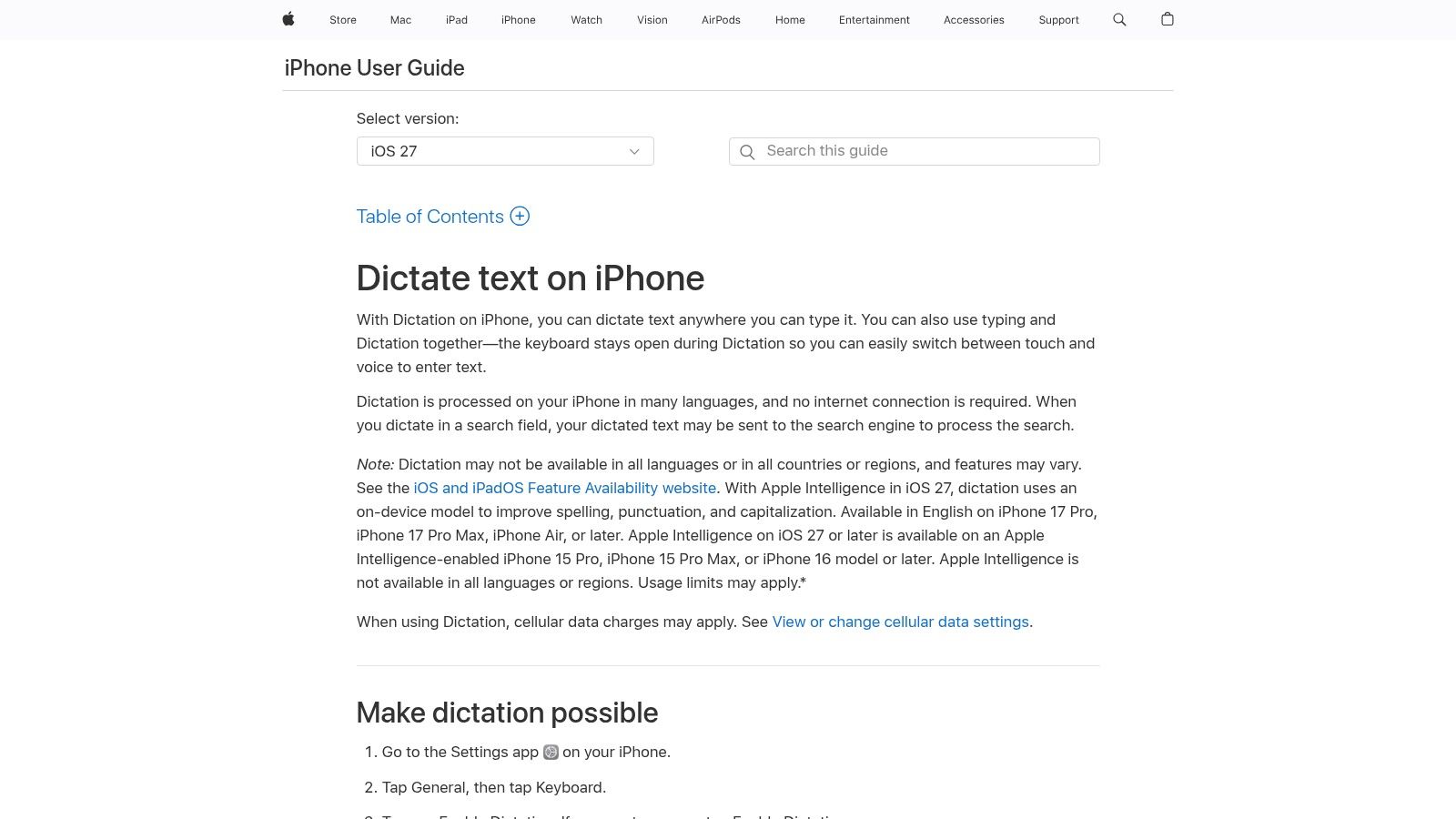
According to Apple, on device processing is available for many languages. That's useful for quick messages, notes, and searches when connectivity is patchy or you'd rather not install anything new.
Don't stretch it past its job. It isn't built to record, organize, and transcribe meetings. Supported languages and functions vary by region and device, and controls and accuracy can differ from specialist dictation apps.
Accent is the test many users skip. A study of five modern ASR systems found mean error rates of 0.7% for US English speakers versus 14.3% for Vietnamese speakers learning English across systems. Your voice, not the average user's, decides whether this tool works.
If you're setting it up for the first time, this walkthrough on voice to text on iPhone covers the basics.
Verdict: perfect for quick, everyday dictation inside the Apple workflow. Weak choice for anything you need to file, search, or share later.
8. Google AI Edge Eloquent
Privacy and connectivity change the ranking fast. Google AI Edge Eloquent processes dictation on the iPhone rather than requiring a server connection, and it's listed as free with no usage limits.
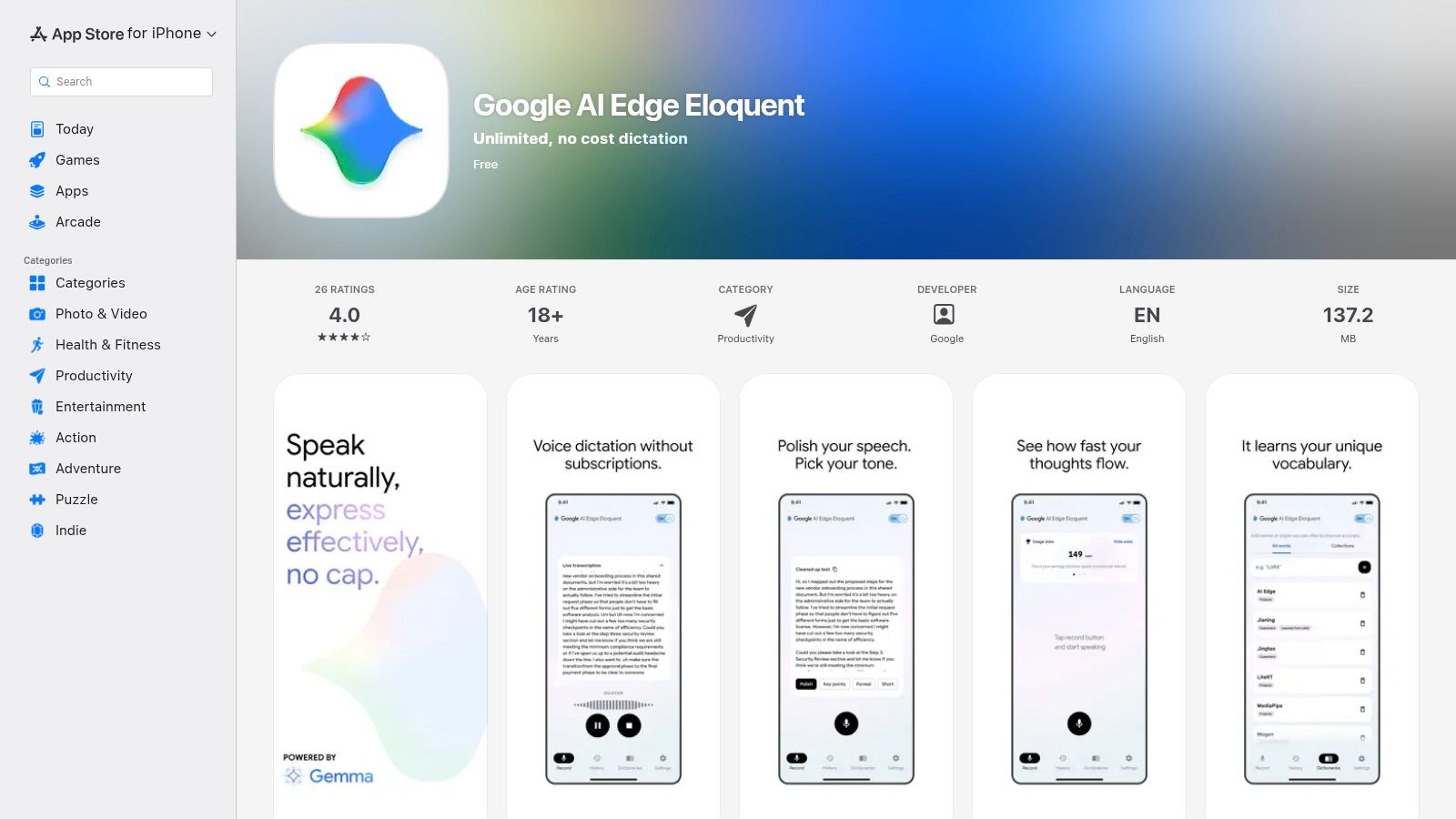
It can remove filler words and smooth out self corrections, so the output reads like polished prose instead of a literal transcript. It can also optionally build a dictionary from Google account data on device.
Offline processing is not a checkbox. Test it in airplane mode before you rely on it in an airport, on a train, or in a roaming zone.
That advice reflects a real gap in most comparisons. Research indexed by ACM on ASR bias shows measurable bias across gender, age, regional accents, and non native accents. A private tool still has to understand you.
The limits are clear. The listing covers iPhone and iPad, not a cross platform service. The app language is listed as English. And polishing spoken text can change your phrasing, which won't suit exact transcription.
Verdict: best free offline dictation option here for iPhone users. Wrong tool for verbatim records or multilingual teams.
9. Descript
Creators don't need a transcript. They need an edit. Descript makes transcription the center of a text based audio and video editing workflow, so you cut a podcast or interview by deleting words on the page.
It combines media recording, transcription, and AI editing tools, including filler word removal and audio improvement. A free plan lets you try it, while paid tiers add more media hours and team features.
If subtitles are part of your output, pair your workflow with guidance on how to make an SRT file. For fieldwork where connectivity is unreliable, offline voice transcription for scientists is a useful contrast to a cloud production platform.
Why Creators Still Hesitate
Descript is more complex than a simple speech to text app. Paid plans carry media hour and AI credit limits. For live conversation or everyday phone dictation, it's the wrong shape of tool.
Verdict: pick it when the transcript is a means to finished audio or video. Skip it if you only want text.
10. Microsoft Word Dictate
If Word is where your work already lives, dictating inside it beats learning a new system. Microsoft Word Dictate turns speech into text directly in the document, alongside Word's standard editing tools.
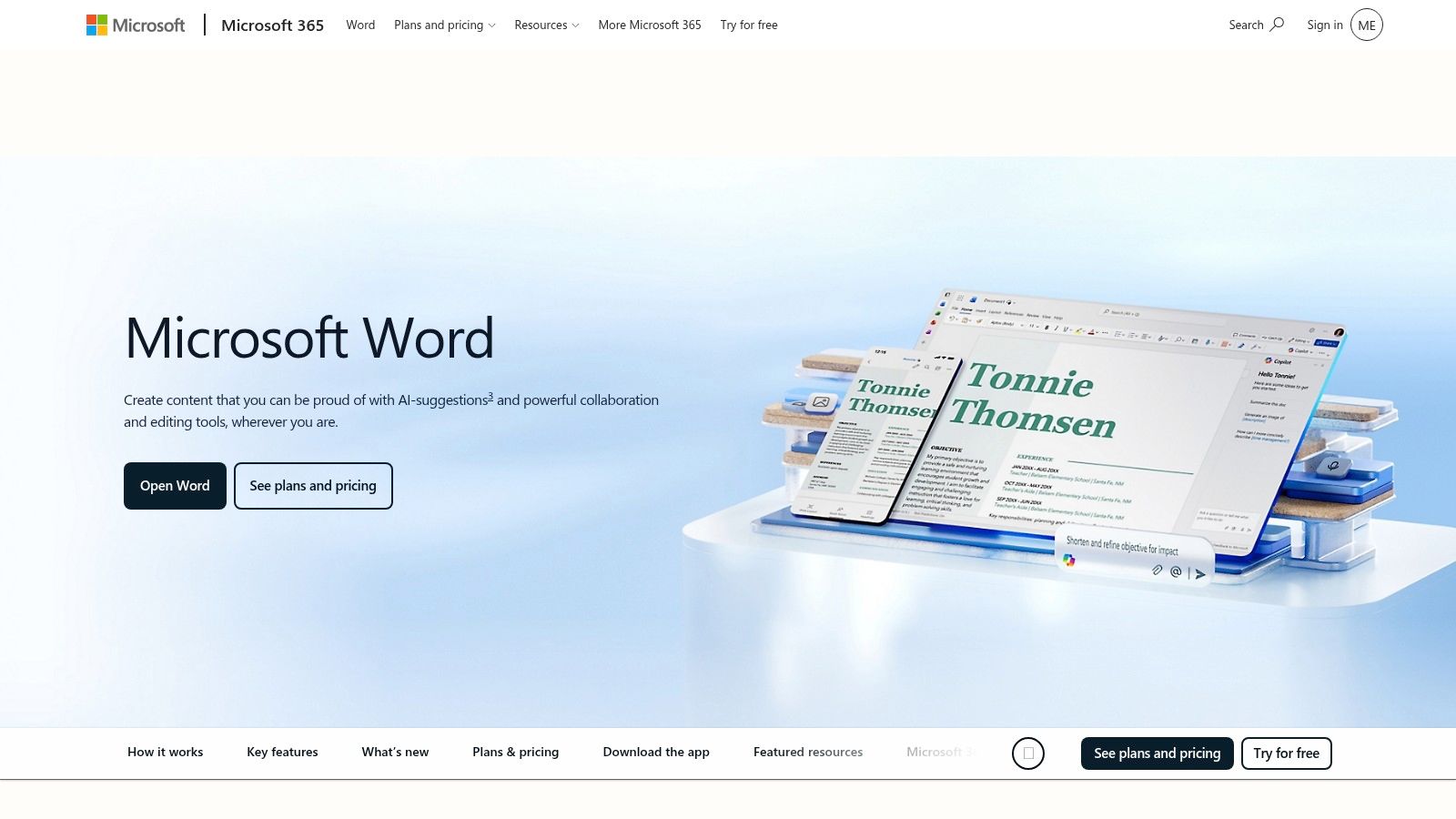
That makes it practical for drafting longer material without typing every sentence. Reports, proposals, and first drafts you plan to revise anyway are the sweet spot.
Check your setup first. Feature access can depend on your Microsoft account, subscription, and app version, so confirm current language and device support before you build a workflow around it. An update or account change can alter what's available.
It also isn't a recording and transcript library app. You won't get the meeting archive, speaker review, or searchable history that Otter.ai or Notta provide. Dictated text still needs a careful read for names, numbers, and punctuation before anything leaves your desk.
For cross border meetings, sort consent before you record anything. A guide to recording conversations under GDPR notes consent under Article 6(1)(a) must be freely given and can be withdrawn under Article 7(3).
Verdict: a sensible, low friction choice for existing Microsoft 365 users drafting documents by voice.
How the 10 speech-to-text apps compare on use case, free access, platforms, and offline use
| Item | Best For | Free Option | Platforms | Offline Use |
|---|---|---|---|---|
| Wispr Flow | Dictating polished text across apps | Free plan with usage limits | Mac, Windows, iOS, Android | Offline support not specified |
| Otter.ai | Transcribing and reviewing meetings | Basic plan with 300 monthly minutes | iOS, Android, Zoom, Microsoft Teams, Google Meet | No; live transcription requires internet |
| Notta | Multilingual meeting transcription and notes | Free plan; three-minute conversation limit | Web, iOS, Android, desktop, browser extension | Offline support not specified |
| Rev | Interviews and recordings needing accuracy options | AI transcription with 45 monthly minutes | iOS, Android | Can record offline and upload later |
| Dragon Anywhere | Creating longer documents by voice on mobile | No; subscription required | iOS, Android in the US and Canada | Not fully; cloud-based dictation |
| Google Docs Voice Typing | Dictating directly into Docs | No separate transcription subscription required | Supported desktop browsers | Offline support not specified |
| Apple Dictation | Quick messages, notes, and searches on Apple devices | Built in; no separate subscription | Supported Apple devices | On-device processing available for many languages |
| Google AI Edge Eloquent | Private or offline iPhone dictation | Free, with no listed usage limits | iPhone, iPad | Yes; on-device processing |
| Descript | Editing podcasts, interviews, and video through transcripts | Free plan available | Platform details not specified | Offline support not specified |
| Microsoft Word Dictate | Drafting documents in Word by voice | Access depends on account and app version | Microsoft Word | Offline support not specified |
Match One Tool to Each Job and Test It Before You Commit
Don't shop by ranking. Shop by job. Dictation belongs to Wispr Flow, Dragon Anywhere, Apple Dictation, Google Docs Voice Typing, and Microsoft Word Dictate. Meetings belong to Otter.ai and Notta. Interviews that may need human accuracy point to Rev. Finished media points to Descript.
Test with your real audio before you pay. Use the names, jargon, accents, and background noise from your actual week. Time how long cleanup takes, not just how clean a demo looks. A tool that saves ten minutes of typing but adds eight minutes of correction hasn't earned its subscription.
Check the unglamorous details too. Compare free tier limits against your real monthly minutes. Test offline behavior before a trip, not at the gate. Read retention and access settings before you transcribe anything confidential, and tell meeting participants what you're recording and why.
The market context explains why choice keeps expanding. The DataIntelo voice to text on mobile devices report valued the global market at $4.8 billion in 2025. More options makes fit, not features, the deciding factor.
Quick Picks by Situation
- Travel: Apple Dictation or Google AI Edge Eloquent for quick offline notes, plus a live conversation tool when the other person needs to understand you now
- Meetings: Otter.ai for review and collaboration, Notta when languages mix
- Language learning: any dictation tool you can loop daily, paired with deliberate review
Travel makes the stakes concrete. A Zurich survey of 4,000 international business travelers found 44% said language barriers discouraged them from considering certain trips. A transcript alone doesn't solve that problem in the moment.
For learners, build a feedback loop. The UNC Learning Center guide to learning a second language links listening and reading as input with speaking and writing as output, plus reviewing previous work to learn from errors. Speak a short passage, compare the output with what you meant, note the errors, and repeat.
Where Translate AI Fits
None of the ten tools above is built mainly for live two way spoken translation. Translate AI on the App Store is. It supports 80+ languages, works with any earbuds or AirPods, and offers speaker mode for hands free chats, with translations you can read and hear.
Be clear about the trade off. It's built for real time conversation, not for archiving searchable meeting transcripts. Pair it with a meeting tool if you need both. You can see how it works at Translate AI.
Start with one job, one tool, and one week of real use. Keep it only if cleanup time drops and the output survives your noisiest, most accented, most rushed audio.
When the person in front of you needs to understand you right now, a transcript isn't enough. Translate AI turns your speech into live two way translation across 80+ languages, works with the earbuds or AirPods you already own, and keeps conversations moving with hands free speaker mode. Try it on your next trip, meeting, or practice session at Translate AI.